
New here? Install the app and make a first connection. This page is a guide to everyday tasks, not a list of every backend command.
Organize what you connect to
Create folders for a team, environment, or purpose. Give connections recognizable names, then use tags, favorites, icons, and colors to find them again. A folder groups saved records; expanding it does not connect to anything. A custom icon or color does not change authentication or security.
Use the connection editor’s Basics for the destination, Protocol for protocol-specific options, Organize for placement and appearance, and Notes for context. Search the editor’s settings when you know the option’s name but not its tab.
To group newly opened tabs automatically, edit a folder and choose Organize → Default tab group. Its children inherit that choice, including nested folders and connections added later. An explicit session choice wins, followed by a connection’s own default and then its nearest folder with an available group. Leave the choice at Inherit to use the parent default, or no group when none exists. Create groups in Tab Group Manager first. This does not rewrite child records or move already-open tabs. JSON export/import and cloning retain the group reference, but the matching group must exist in the destination; connection-only exports do not create tab groups, and CSV/XML omit this field.
Read Connections & Editor for the full editor map, and Protocols before choosing an unfamiliar client. Available choices depend on your native build and the destination’s requirements.
Restore deleted connections
The connection tree’s Recycle Bin button opens a searchable tab for the current database. Deleting a connection or folder moves its saved records into that database’s bin; it does not create a global trash collection. Search by name, protocol, or original folder, select individual items, a page, or all matching results, then Restore selected. Restoring a folder includes retained children from the same deletion; existing connection IDs are not overwritten. Permanent deletion and Empty recycle bin require a separate review. Emptying includes entries hidden by filters.
Choose Settings → Security → Current database recycle bin to change retention for the named database only. The default is 15 days from deletion; use a custom whole number of days or Keep indefinitely. A shorter period can immediately expire older items, so review the affected count before applying it. Automatic expiry runs only when the owning database is open and accessible; locking it does not authorize background decryption. A bin tab stays tied to its database and hides its contents if that database is closed, locked, or no longer active.
Recycled records retain the saved configuration needed for restoration under the database’s existing storage protection. The explorer displays metadata, not credentials. Retention and permanent deletion remove current recycle-bin records; they do not erase backups, exports, or shared OS-vault artifacts and are not secure erasure.
Work in sessions
A saved connection is reusable configuration. Opening it starts a session or an integration tool; closing the session is different from deleting the saved record. Use tabs for the active work you need, and a detached window when a session belongs on another display.
flowchart LR
  A[Saved connection] --> B[Open]
  B --> C[Session or tool tab]
  C --> D[Close session]
  D --> A
  A --> E[Edit and save configuration]
  E --> A
For repeatable connection and disconnection actions, see Behaviors. For recording a supported session, see GIF recording; recording formats and sources have their own limits.
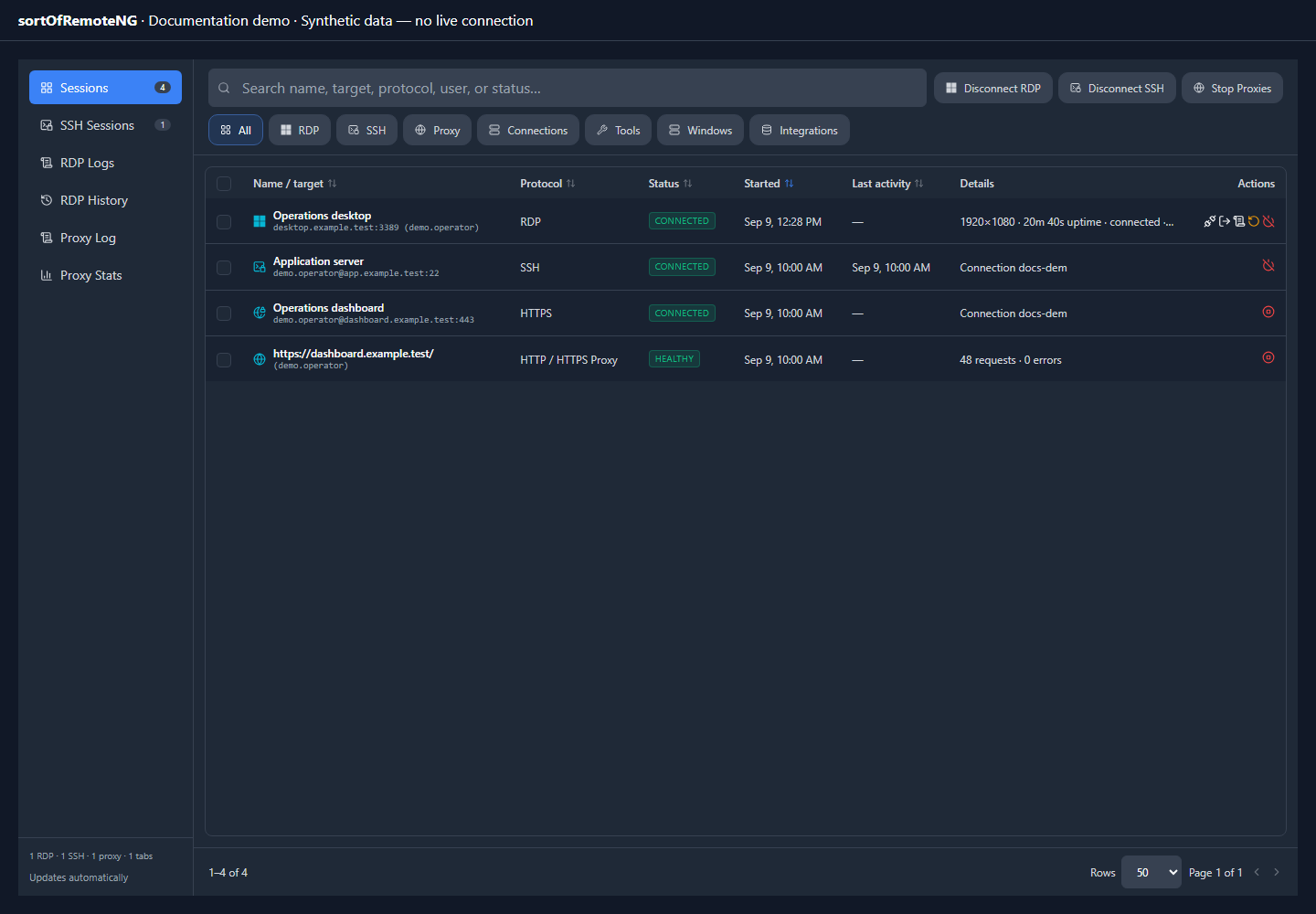
Open Session Manager to filter active sessions, review their status, and use the action for the correct entry. Visible views update automatically; you do not need to keep pressing Refresh.
Reach systems on another network
Check whether the destination needs a proxy, VPN, tunnel, or SSH jump host. Configure a route deliberately instead of assuming every protocol follows the same proxy setting. Network paths explains the supported combinations and how referenced connections are resolved.
For a web management interface, consult Web viewer trust and authentication. A successful TLS diagnostic followed by HTTP 401 can be an anonymous authentication challenge; it is not proof that a saved password was rejected.
Website application profiles adds categorized HTTP/HTTPS application choices, explicit manual/form/Basic login modes, and Custom application selectors. First-party Google profiles supply their reviewed HTTPS address on blank connections and offer an explicit reviewed Google Account form/TOTP flow; other profiles leave the host unchanged. No profile silently enables automatic sign-in.
Use administration tools
Integrations lists the actual saved-instance setup, authentication requirements, and known limits for service panels. Choose the appropriate tool rather than a generic protocol as a substitute. An unavailable native capability is a build limitation, not a reason to overwrite an existing connection with another protocol.
Move or duplicate your library
Import, export & clone explains formats and review steps. Preview imports before applying them, choose deliberately whether credentials and trusted identities belong in an export, and keep an independent backup before a large change.
Managed database key slots are not portable copies of credentials. Database protection and portable password-encrypted export are separate choices; a generic clone may require explicit destination protection instead of copying device-bound slots.
Review identities and protect saved data
The dedicated Trust Center manages remembered host keys, certificates, and identity decisions for the open database. It is not a password vault. Review changes to a host’s fingerprint through an independent trusted channel before accepting them. Forgetting a record removes the remembered decision; it does not mean “always trust this host.”
Security overview explains trust scope and the threat model. Encryption & recovery separates global artifact protection, individual database protection, and portable exports. Master-key recovery covers recovery material and verified restoration.
For an individual managed database, Advanced database ciphers explains the optional authenticated Twofish and Serpent choices, their compatibility limits, and why AES-256-GCM remains the default.
flowchart TB
  A[What are you managing?] --> B[Remote host identity]
  A --> C[Application files on disk]
  A --> D[One saved database]
  A --> E[A portable exported copy]
  B --> F[Trust Center]
  C --> G[Security: Artifact protection]
  D --> H[Security: Current database]
  E --> I[Export protection options]
Keep the app current
Use Downloads & updates to choose the matching operating system, processor, and package. The chooser uses files actually published in the latest release; it does not start a download automatically. This documentation follows the current development branch, so a just-added control may not yet be in an older installed release.
For developers
Building or extending the app? The contributor guide, architecture, and testing guide describe the development workflow separately from these user tasks.